Stock photos and undoing AI changes
Two things make working with the AI assistant and the AI Website Builder safer to experiment with: it can find a good-looking photo even when you haven't uploaded one, and anything it changes can be rolled back with a single click.
Stock photos when you don't have your own
When the assistant builds or edits a page and needs an image — a hero banner, a gallery, a section background — it always looks at your uploaded property photos first and prefers those. If there isn't a good fit among your own photos, it falls back to a curated stock-photo library so the page still looks finished rather than being left with an empty placeholder. You can always swap a stock photo out for one of your own later, exactly as you would any other image on the page.
Undoing an assistant change
Every reply from the assistant lists the changes it made as a row of small chips underneath its message — for example, "Added a content block" or "Updated the site theme". Each reply has an Undo button:
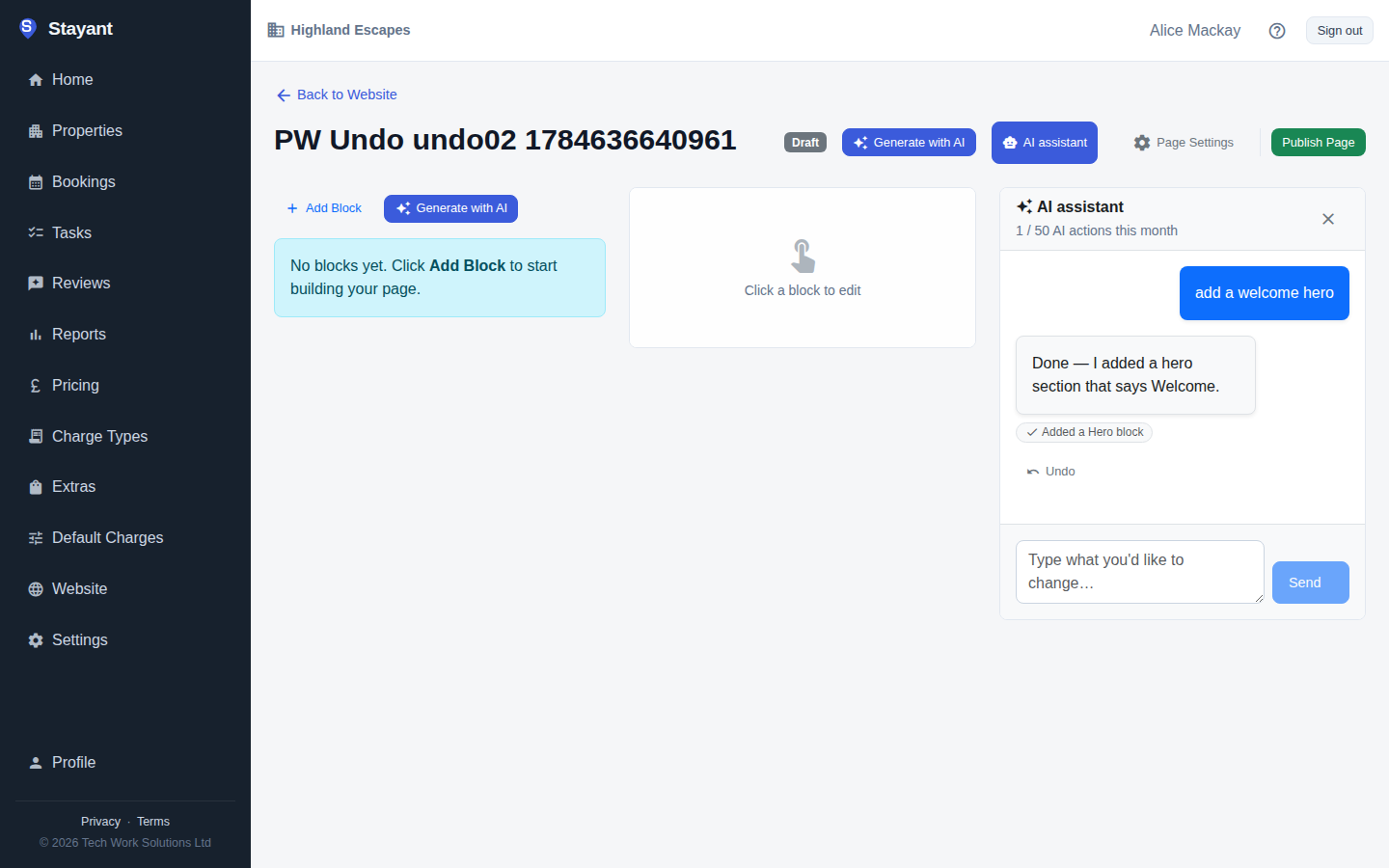
Click Undo to roll back everything that reply changed, restoring your pages and theme to how they were before that turn — a block it added is removed again, a block or theme it edited goes back to its previous state, and anything it deleted comes back.
Undo puts back exactly what was there before the assistant's change. It doesn't merge with anything you've done since: if you've edited the same block by hand after the assistant changed it, undoing puts the block back to how it was before the assistant's change, and your later edits to that block are lost. A block the assistant added is removed even if you've edited it since. Undo only stops and tells you when something it needs to restore no longer exists — for example, a page you've since deleted.
Undo works on the live site in the same way the original change did: on a page that's already published, or for the site theme, the rolled-back version is what guests see straight away.