Generating your website from a description
If you haven't built any pages yet, the fastest way to get a starting point is to describe your business and let the AI Website Builder generate a complete draft site for you — a set of pages, well-composed blocks, and a cohesive theme, ready for you to review and refine.
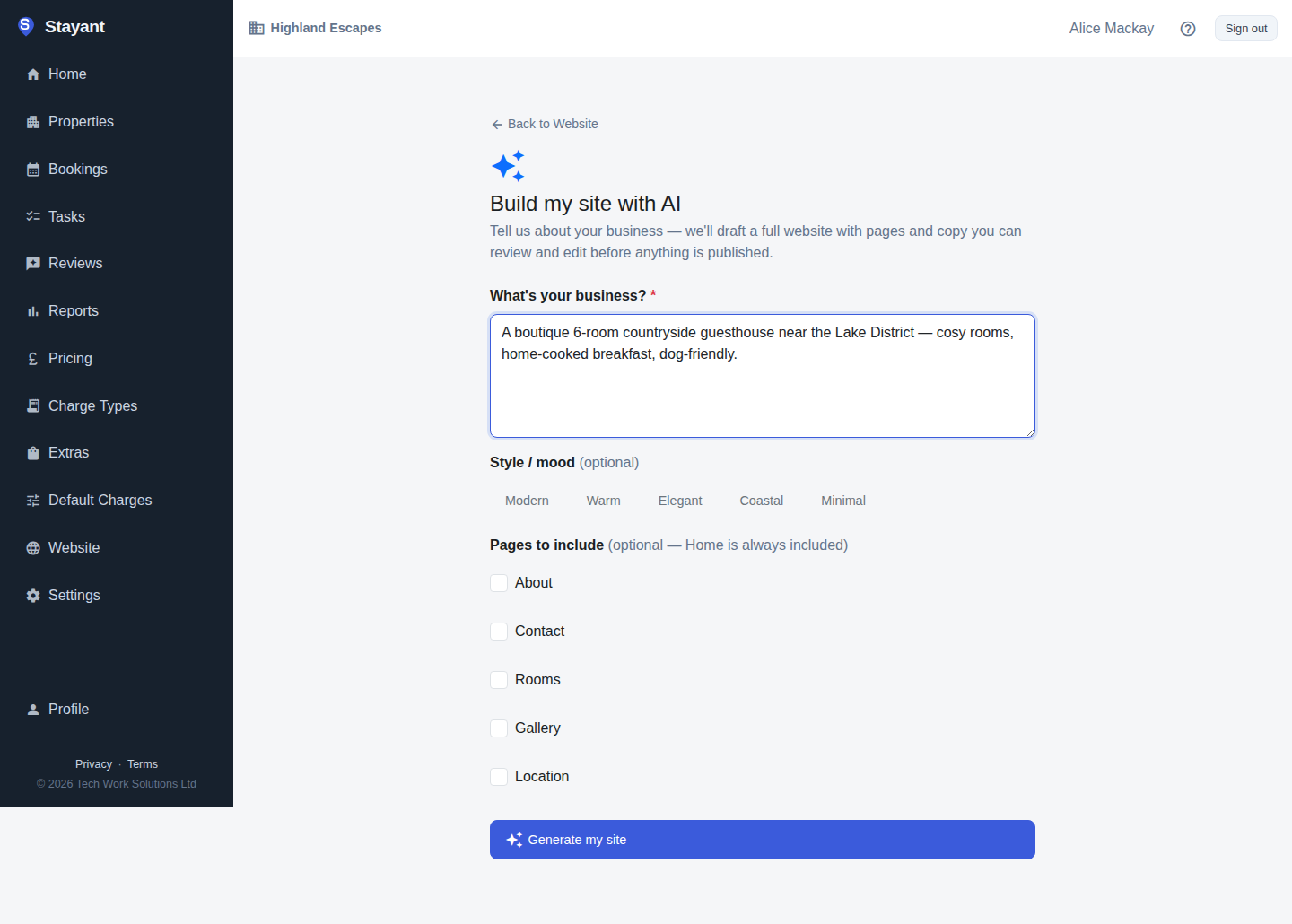
How to start
On the Website hub, when you have no pages yet, look for Build my site with AI. It opens five short steps. Only the first is required, and Generate my site works from any step: skip the rest and the AI chooses for you.
- Describe (required): a few sentences about what you do, who stays with you, and anything that makes the place distinctive. Add a Style / mood if you like.
- Look: every design preset as a small preview in its own fonts, background and button style. Pick the one you like best.
- Colours: choose your brand colour, used for buttons, links and highlight bands. You can:
- upload your logo and pick one of the colours we find in it (the logo also goes in your site header);
- pick one of eight ready-made colours; or
- choose your own. If it's too light to read on white, we warn you and don't use it.
- Photos: how the AI chooses photos (see Photo placeholders).
- Pages:
- Tick any of About, Contact, your accommodation page, Gallery or Location. Home is always included.
- The accommodation page is called Our cottages if all your properties are cottages, Accommodation for other self-catering properties, and Rooms only for B&B or inn-style rooms. The AI uses the page names you tick exactly as shown.
- Leave them all unticked and the builder picks a sensible set.
- Add Key facts, one per line, such as "45 acres of meadow" or "2 miles to the beach". The AI uses them exactly as written and turns numbers into a stats strip.
Submit the form and the AI gets to work generating a full multi-page site: it writes the pages, composes blocks for each one, applies a cohesive theme, and uses your uploaded property photos where it can find a good fit. It uses stock photos only for general scenery. Where there's no suitable photo it leaves a photo placeholder that says which photo belongs there.
How it designs your site
Anything you chose (look, colour, logo) is applied to your site before the AI starts, and the AI is told to keep it. For anything you left open, it picks a look for the whole site:
- A design preset. It chooses the preset that best fits your description and style choice. For example, Heritage suits a farm or country estate and Coastal suits a seaside cottage. The preset sets your fonts, spacing, corner style, buttons and photo frames together.
- Brand colours. It sets a primary colour (used for buttons, links and highlight bands) that suits your business, or uses the colour you mention in your description. It also checks that your header and footer text stays readable.
- Section styles. It gives each block a layout and background. It alternates plain and tinted backgrounds down the page, puts a photo or your property cards at least every second section, and always shows your properties on the Home page.
Your site always shows in light mode. You can change any of these afterwards in Website Settings or by asking the AI Website Assistant.
It only writes what you've told it
The AI builds your copy from two sources: your description, and the details you've entered for each property (name, type, how many it sleeps, bedrooms, bathrooms, description, amenities, and the town or region). It never sees access codes or check-in instructions, your street address, or your prices. It is told never to make anything up. That covers:
- Reviews and testimonials — the AI never writes guest quotes, star ratings or awards. Publishing invented reviews is illegal in the UK.
- Facts you haven't given it — amenities (hot tubs, wood-burners, Wi-Fi), pet or child policies, prices, check-in times, "we live on site", nearby attractions or distances.
- Contact details — the Contact page uses only the email and phone number in your website settings. If those are empty, it shows the contact form alone.
Where something isn't covered, the AI writes neutral copy or leaves the topic out. If you want something mentioned — dogs welcome, parking, a hot tub — put it in your description or your property's amenities before you generate.
Showing real guest reviews. Add a Reviews block to a page. It shows the genuine reviews your guests have left, and you can limit it to one property. The AI may add one for you. The older Testimonials block holds reviews you type in yourself. The AI can't create or edit it, and it starts empty. Only type in genuine reviews from real guests. The public site never shows the old built-in sample quotes.
It runs in the background, with live progress
Generating a whole site takes a few minutes, so it runs in the background. While it works you'll see what it's doing: Planning your pages…, Creating page 3: Our cottages…, Adding photos…, then Finishing touches…, with a progress bar and a count of the pages created so far.
At the end it checks how your Home page looks. It takes a picture of the page on a phone and on a computer, checks it against a design checklist and fixes what fails. The checklist covers readable text, nothing cut off on phones, no empty sections, varied backgrounds and one main button per screen. You'll see Checking how it looks on a phone… and Polishing the design… while it does. This takes about a minute and never undoes your choices.
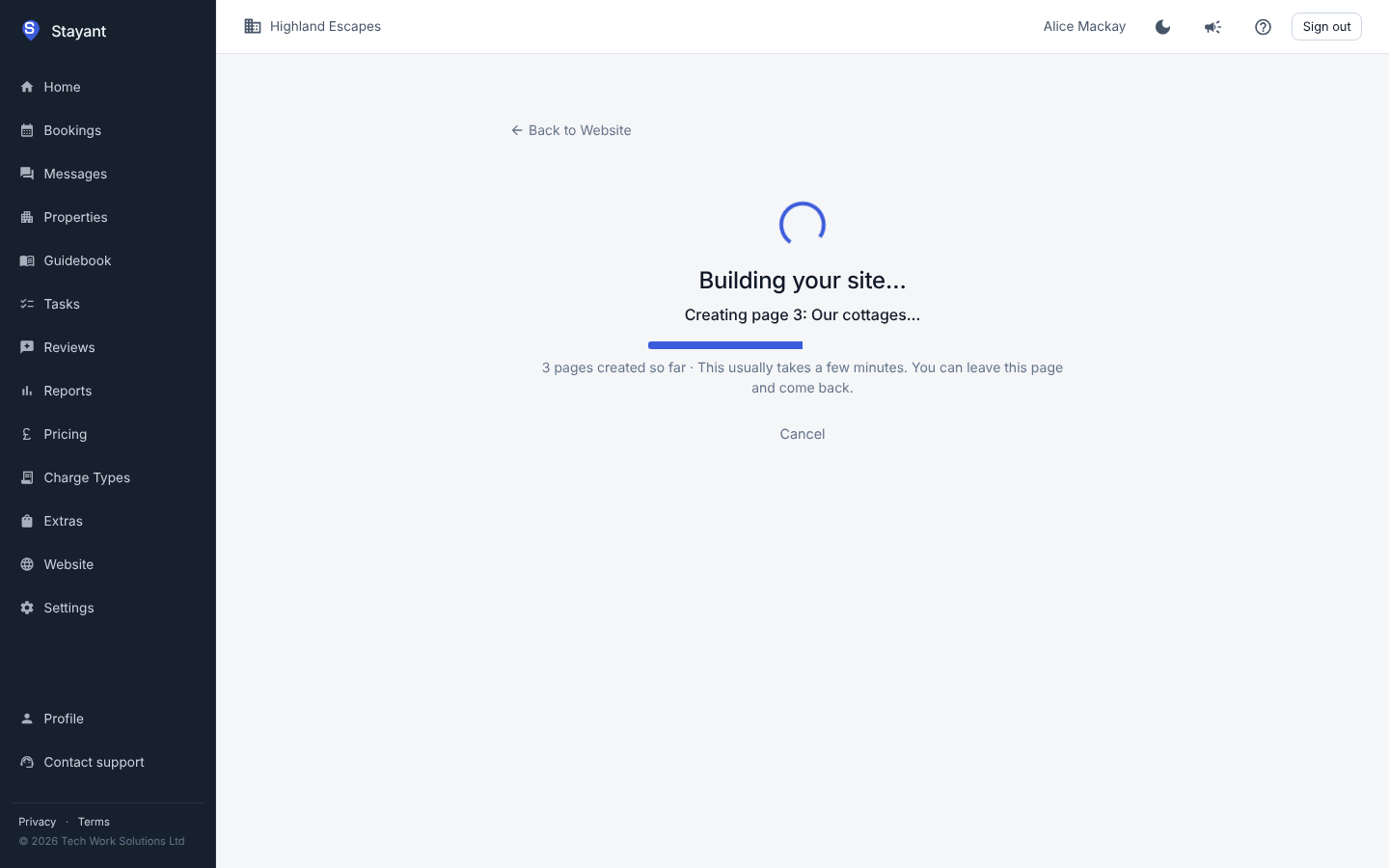
- It keeps going if you leave. Generation finishes even if you navigate away or close the tab. Reopen Build my site with AI and it picks up the running job's progress instead of asking you to start again.
- When it finishes, you're taken straight to the Website hub with a "Your draft site is ready" message.
- If something goes wrong, you'll see a plain explanation and a Try again button that re-runs the build with the same answers. A failed build doesn't use up your AI allowance. If the AI runs out of time after creating some pages, you get the pages with a note to check each one and fill any gaps.
- If the progress stops updating (for example, a dropped connection), the page checks whether your draft pages exist. If they do, you'll see Your draft pages are ready with a link to them. If not, you can try again.
- Cancel — if you change your mind partway through, cancelling keeps whatever pages have already been generated as your draft, rather than throwing everything away.
Only one generation can run at a time for a given site.
It never publishes pages for you
Every page the builder creates is a draft, so none of them are visible to guests until you review them and choose to publish.
The one exception is the theme. Fonts, colours and spacing are site-wide settings rather than part of a page, so the theme the builder picks replaces your current one straight away. If your site is already published, guests will see the new look on your existing published pages immediately. You can change it back on the Design settings, or undo the change from the assistant.
After it finishes
When generation completes, you land on the Website hub, where the newly generated pages appear in your page list. From there you can:
- Open any page in the block editor to tweak it by hand. Read every page before publishing, because you're responsible for what your site says.
- Keep refining with the AI assistant — "make the hero moodier", "add a spa page", and so on. The same honesty rules apply to the assistant.
- Publish everything in one go with Publish website (see
Your booking website). The AI
never sets a home page, so publishing picks one for you: the page with the slug
home, or the page titled Home, or your first page.
Usage and plans
Generating a full site uses a batch of your monthly AI-action allowance, rather than the single action a normal AI-assistant edit uses — building several pages and blocks at once naturally costs more than one change. If a generation fails partway through, the actions it used are refunded. Your usage so far is shown the same way it is throughout the AI features — "3 / 50 AI actions this month" means you've used 3 of your 50.