Preview a page
Every page in the block editor has a Preview button next to View at the top of the page. Click it to open your page exactly as it will look once published — your site's real theme colours, fonts, and layout. For a draft page, that lets you check it before anyone else can see it.
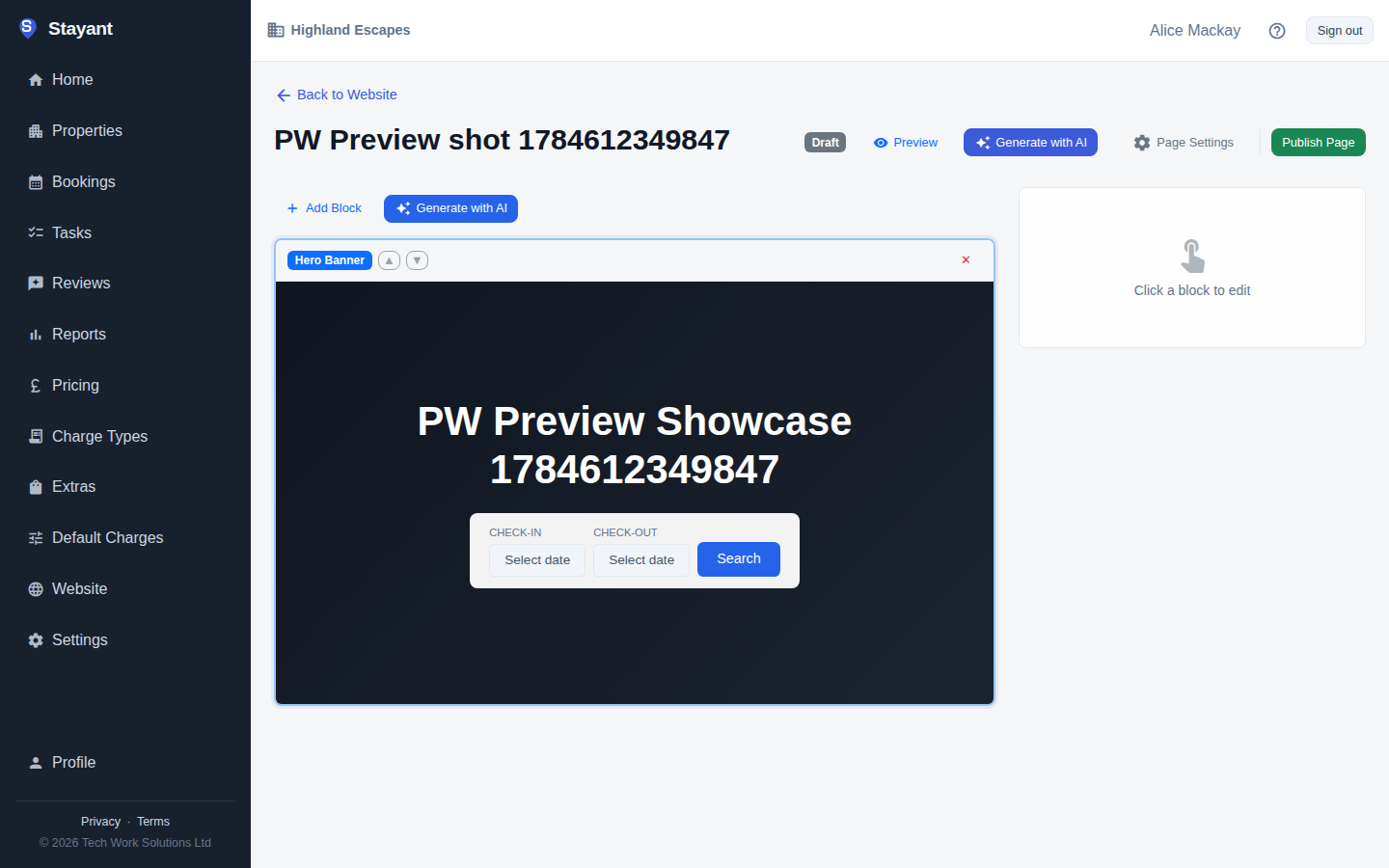
Why Preview is different from just looking at the canvas
The block editor's canvas gives you a good approximation of your page as you build it, but a few things — like your site's full colour theme in dark mode, and some layout variants — aren't fully rendered in-canvas. Preview opens the same code path guests use to view your published site, so what you see is a true, final-fidelity render: the Design theme you've chosen, block layout and background styles, and your custom domain (if you have one) all apply exactly as they will once published.
A private link, not a public one
Preview opens a private link — it isn't discoverable, isn't indexed by search engines, and isn't cached anywhere. The page shows a banner confirming it's a draft:
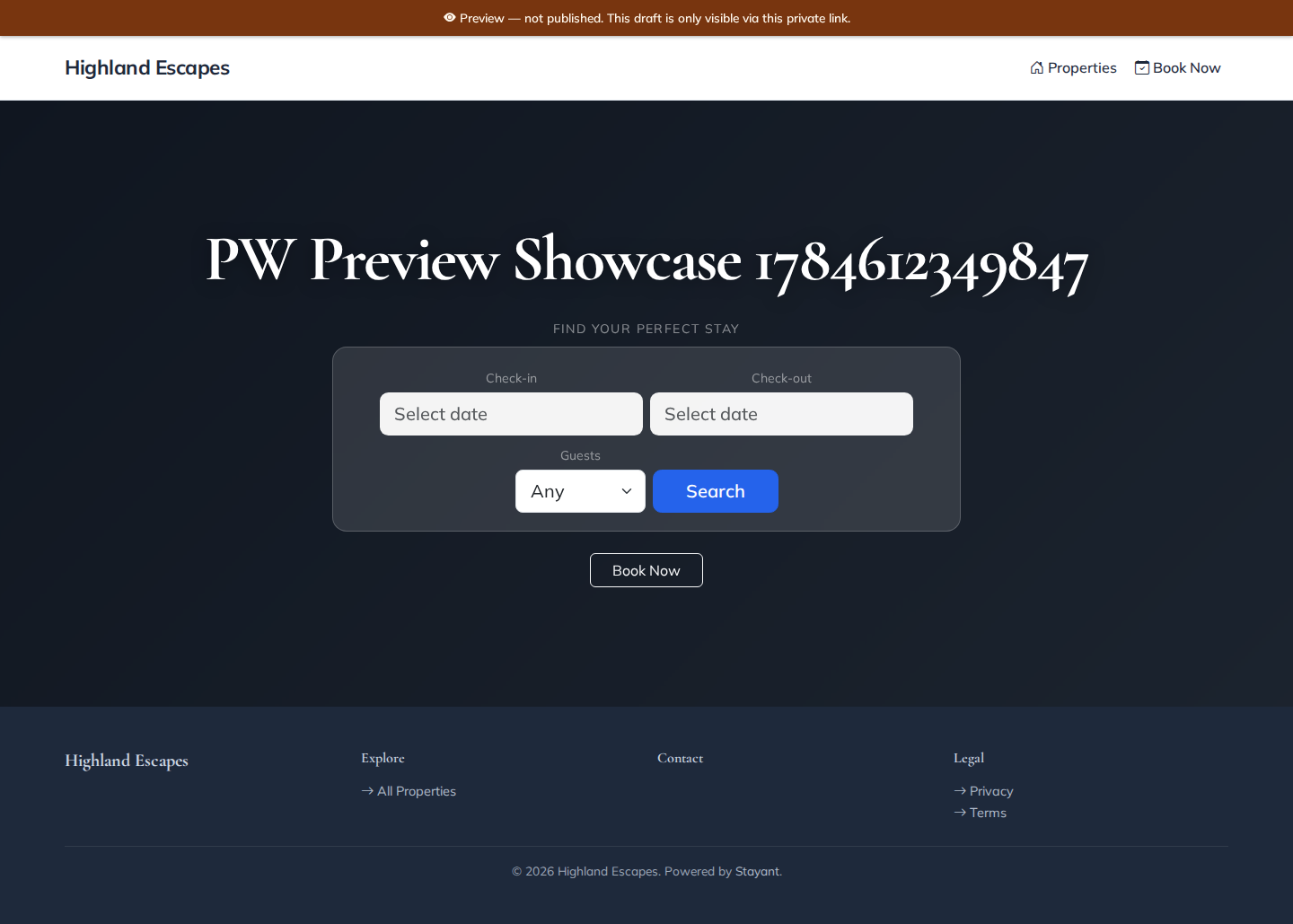
The link is only valid for 30 minutes from when you click Preview — after that it stops working, and clicking Preview again mints a fresh one. This keeps a preview link safe to paste into a chat message to a colleague for a quick look, without leaving a permanent, unlisted copy of your draft sitting on the internet.
Draft pages vs. published pages
Preview always shows the page's current saved content. Stayant doesn't keep a separate draft copy of a published page — block edits save automatically, and on a published page (on a published site) they're live for guests as soon as they save. So:
- On a Draft page, Preview is the way to see the finished page before you publish it.
- On a Published page, Preview shows the same content guests are already seeing. It can't hold edits back from guests.
To rework a live page without guests seeing the changes as you go, Unpublish it first, make and preview your changes, then publish it again.
Opening a preview never changes anything
Opening a preview link doesn't publish or unpublish anything — a page's status only changes when you use the Publish Page / Unpublish button yourself. Preview is purely a look, not a release.