Your booking website
The Website page (in the main navigation, or go to /website) is the hub for the public booking site Stayant hosts for you. From here you see whether your site is live, manage its pages, and reach the rest of the website tools.
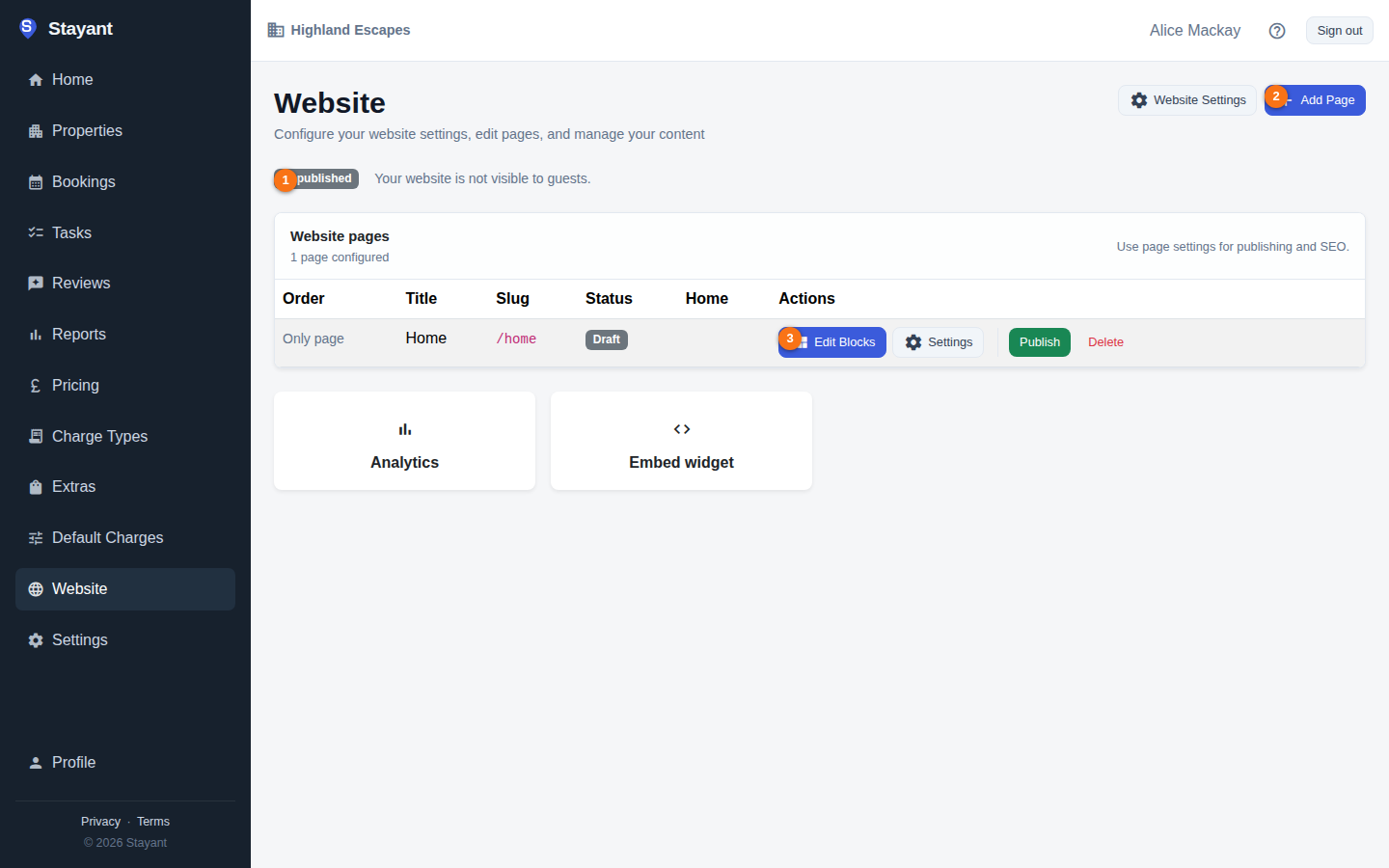
The publish status (①) sits just under the title, Add Page (②) is top-right, and each page row has an Edit Blocks link (③) and other per-page actions.
Publish status at a glance
Just under the page title (①) you'll see a coloured dot and one of two words:
- Published — your site is live. If a public address is set, the host name is shown next to it as a link, and a View Site button appears in the top-right to open it in a new tab.
- Unpublished (grey dot) — "Your website is not visible to guests." Nothing is served publicly until you publish.
Publishing the whole site is controlled on the Website Settings page — see Settings & custom domain.
Your pages
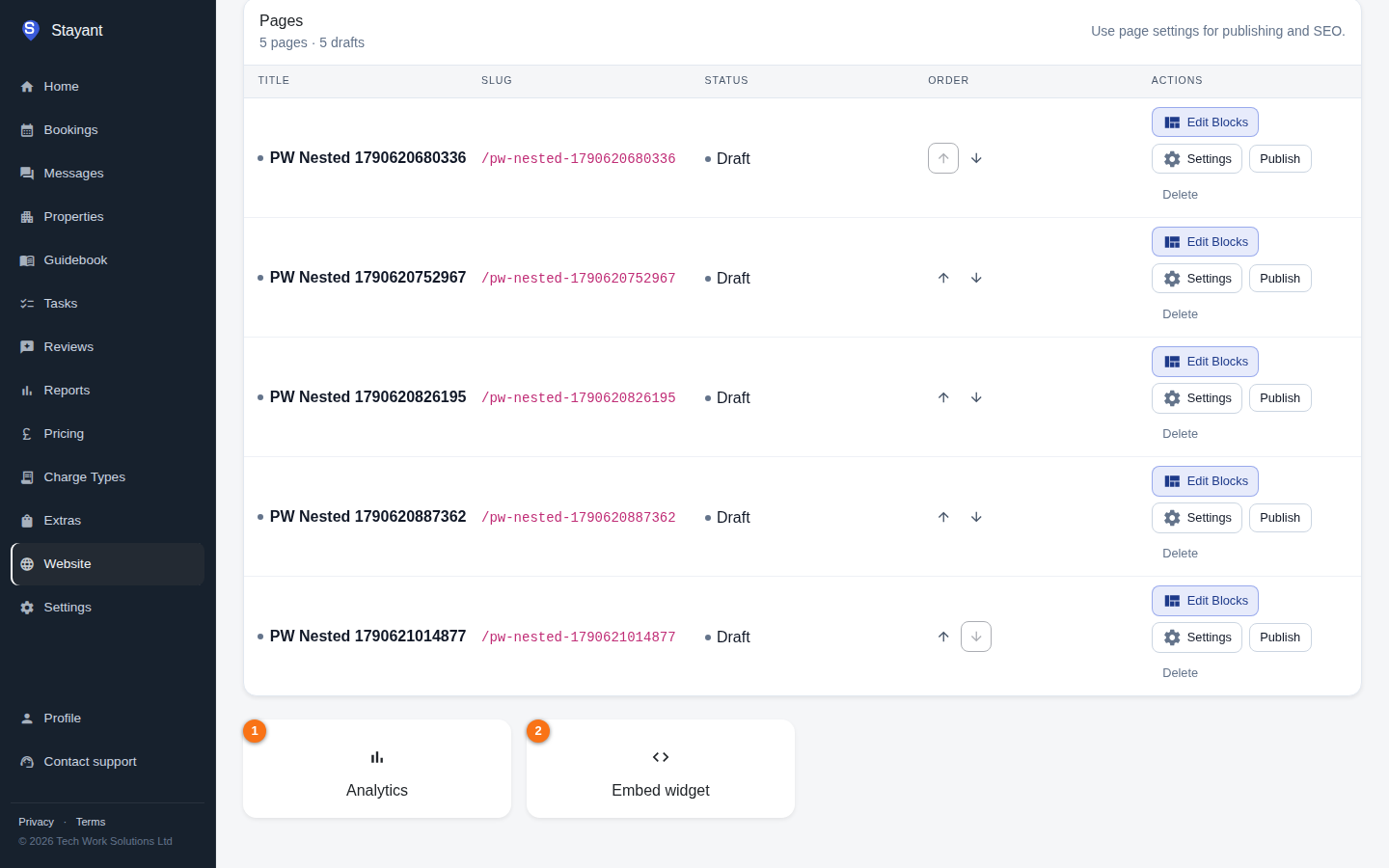
The Pages table lists every page on your site, with these columns:
- Title — the page name. A Home tag next to the title marks your home page.
- Slug — the URL path. The home page shows
/; other pages show/<slug>. - Status — Published or Draft. A page must be published and the site must be published for guests to see it.
- Order — use the up/down arrows to reorder pages (these drive the order they appear in the site navigation). The arrows only show when you have more than one page; a single page shows "Only page".
- Actions — per-page buttons (see below).
Per-page actions
- Edit Blocks (③) — opens the block editor for that page (see Pages & the block editor).
- View — opens the live page in a new tab. Only shown when both the site and the page are published.
- Settings — opens a dialog to edit the page's Title, Slug, Meta Title and Meta Description (for SEO), and to toggle Published and Set as home page. The slug is fixed for the home page (it's always served at
/). - Publish / Unpublish — toggles that single page's status.
- Delete — removes the page and all its blocks. This cannot be undone, so you'll be asked to confirm.
Adding a page
Click Add Page (②, top-right). In the dialog, enter a Title and a Slug (lowercase, hyphens only — for example about), and optionally tick Set as home page. New pages are created published — and because block edits save straight to the page, anything you add to a new page is visible to guests as you build it if your site is published. To build a page privately, Unpublish it first (or clear Published in its settings), then publish when it's ready.
Tip: you can also have AI draft a whole site — several pages at once — from a short description of your business. See Generate a site with AI.
Quick links
Two shortcut cards at the bottom take you to:
- Analytics (①) — visitor metrics for your site (see Website analytics).
- Embed widget (②) — generate a booking widget to drop into another website (see Embeddable booking widget).
The Website Settings button (top-right) opens the full site settings — domain, branding, navigation, contact details, and SEO defaults.