Settings & custom domain
The Website Settings page (from Website, click Website Settings, or go to /website/settings) controls site-wide options for your public booking site. Settings are grouped into cards; change what you need and click Save Settings at the bottom — you'll get a "Settings saved." confirmation.
General — publishing and domain
The first card controls publishing and your address:
- Published (visible to guests) (①) — the master switch for your whole site. While this is off, nothing is served publicly, regardless of individual page status.
- Custom Domain (②) — enter your own domain (for example
booking.myhotel.com) to serve the site there. Leave it empty to use your free subdomain on stayant.co.uk. - Footer Text — free text shown in the site footer.
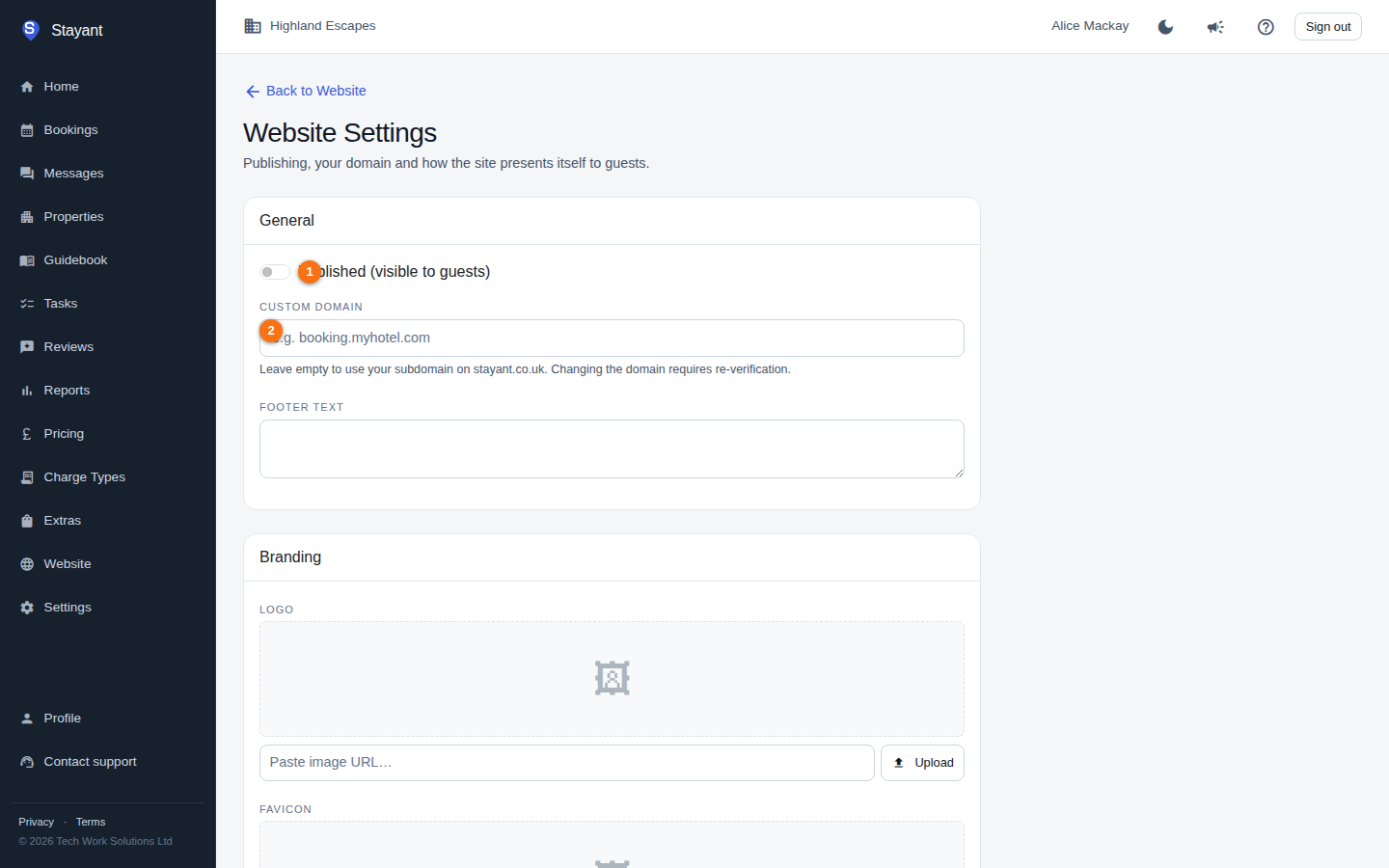
Pointing a custom domain: enter the domain here and save. Stayant then shows a Pending verification badge along with the exact TXT and CNAME (or A) records to add at your registrar, plus a Verify now button. The domain won't serve your site until it verifies. Full walkthrough: Connect your own domain.
The remaining cards — Branding (①), Design (see Site design), Navigation & Footer, Dark mode (see Dark mode), Contact & Social, and SEO — group the rest of the options. Scroll down to reach them.
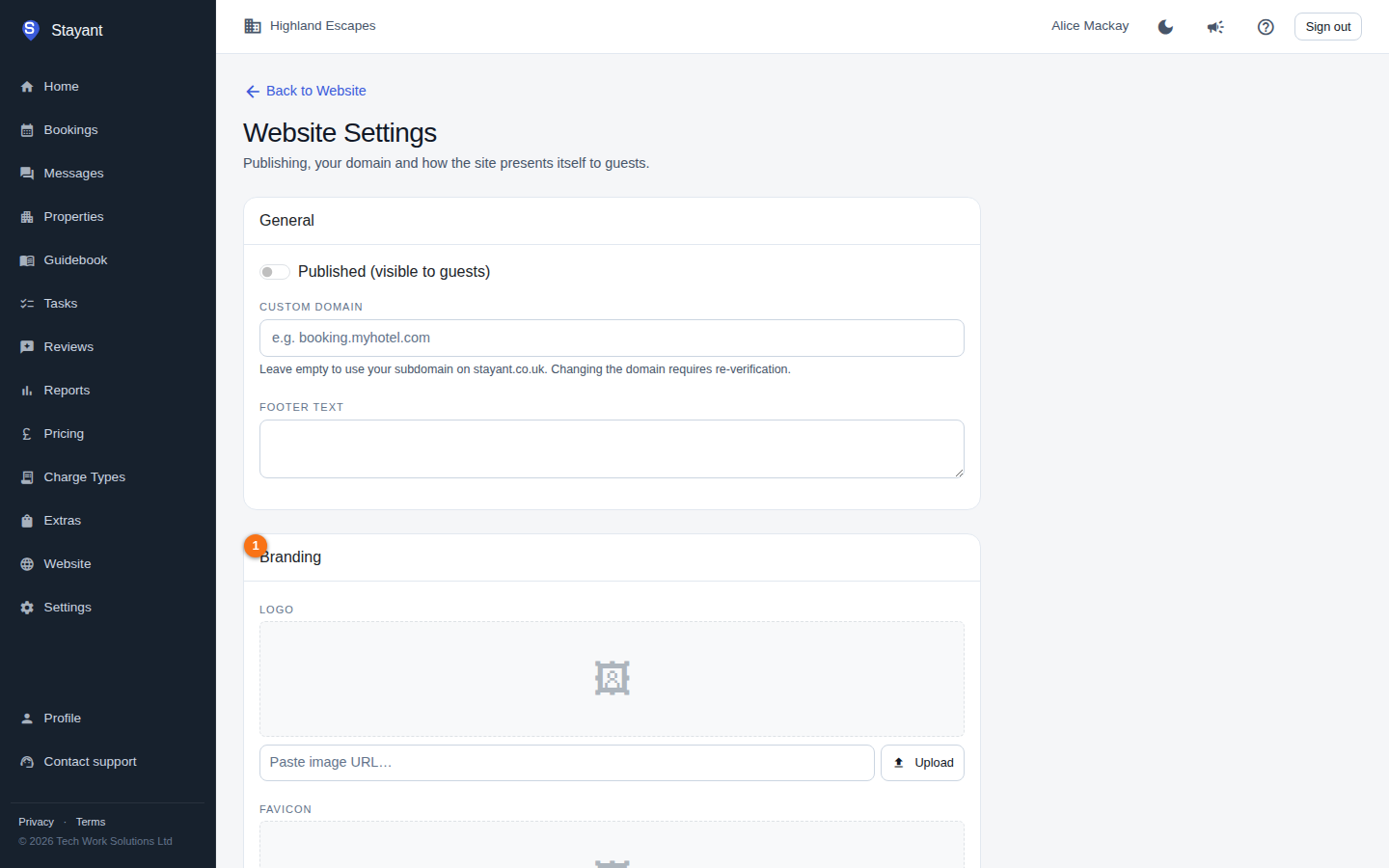
Branding
- Logo and Favicon — upload images for your site logo and browser-tab icon.
- Primary Color and Accent Color — pick with the colour swatch or type a hex value; both fields stay in sync.
Dark mode: by default your public site follows each visitor's device theme — when someone's phone or computer is set to dark mode, the site renders with a dark background and light text, and switches back to light for everyone else. Visitors don't see a toggle; it simply matches what their device already prefers. You can turn this off, or override the dark palette (including separate dark primary/accent and navbar/footer colours), from the Dark mode card on this page — see Dark mode.
Navigation & Footer
These colours drive the navbar and footer on every page of your public site:
- Show "Book Now" link in the navbar — turn off if your navigation already has a Properties or custom call-to-action and the duplicate isn't useful.
- Navbar Background / Navbar Text — navbar colours.
- Footer Background / Footer Text — footer colours.
Contact & Social
- Contact Email and Contact Phone — shown on your site (for example in contact sections and the footer).
SEO
- Default Page Title — the title used when a page doesn't set its own meta title.
- Default Meta Description — the description used when a page doesn't set its own.
Individual pages can override these in their own page settings — see Pages & the block editor.
Going live
- Build and publish your pages (see Your booking website).
- Set branding, navigation, contact, and SEO defaults here.
- Optionally enter a Custom Domain and point its DNS at Stayant.
- Turn on Published (visible to guests) and Save Settings.
Once published, the Website page shows a green Published badge and a View Site button so you can open the live site.