Editing a booking
From a booking's Overview tab, click Edit in the header (next to More) to change the stay itself — dates, room, rate plan, guest counts, guest contact details, and notes — without cancelling and recreating it.
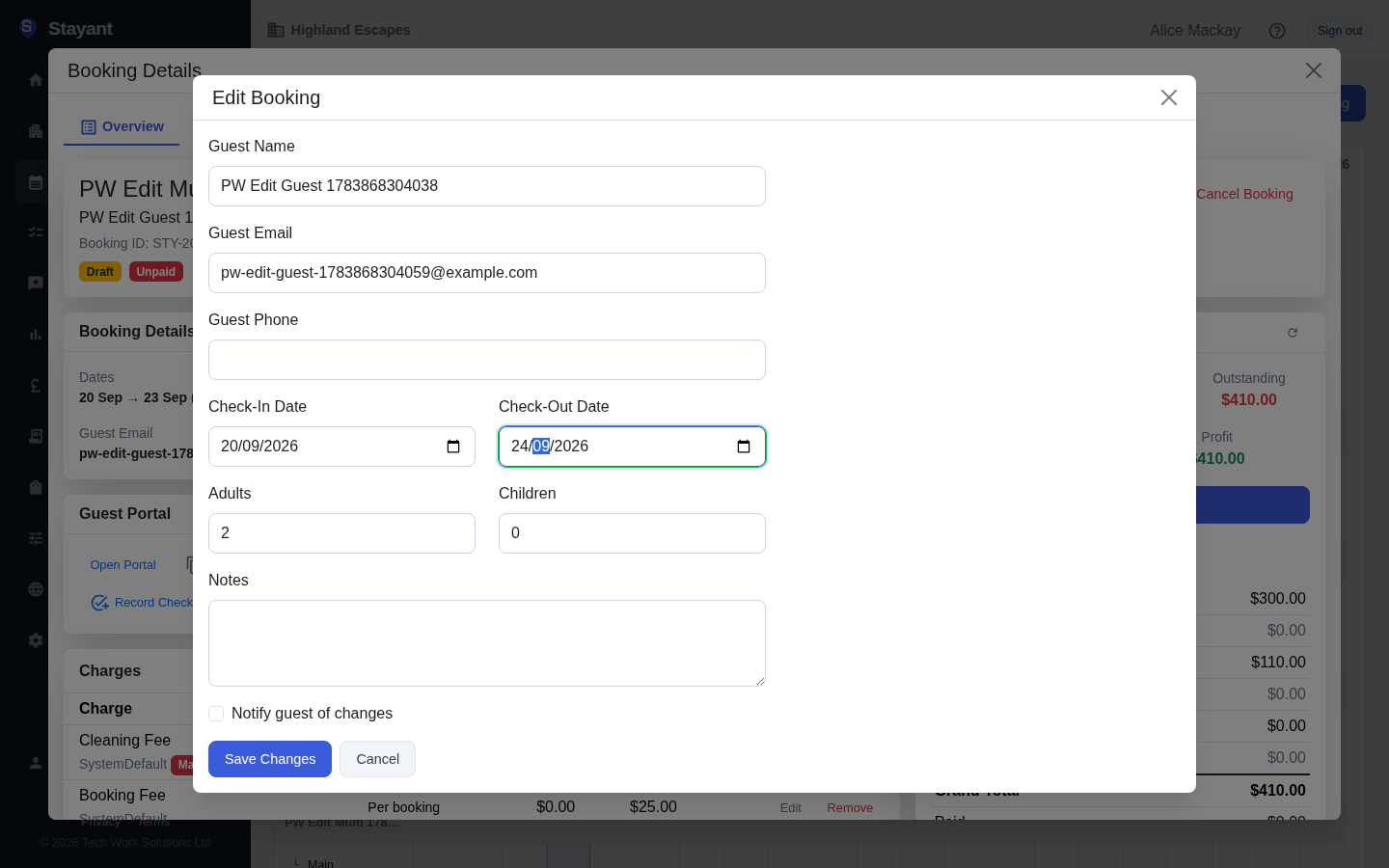
What you can edit
- Check-In Date and Check-Out Date
- Room
- Rate plan
- Adults and Children
- Guest Name, Guest Email, Guest Phone
- Notes
The Property field is shown for reference but can't be changed here — see What you can't do here below.
How to edit a booking
- Open the booking and go to its Overview tab.
- Click Edit. The Edit Booking modal opens, pre-filled with the booking's current details.
- Change any of the fields above. The Availability calendar and Pricing Summary panel both recompute live as you change dates, room, rate plan, or guest counts — the pricing re-prices from your current rates (not the price originally charged) and re-checks the property's minimum-stay rule. If the new dates or room don't meet the minimum stay, aren't actually available, or rates aren't set for those dates, a warning appears before you save.
- Optionally tick Notify guest of changes (off by default) to send the guest a booking-updated email once the save succeeds.
- Click Save Changes.
If a room or rate plan on the booking has since been deactivated, it still appears in the picker (flagged "(inactive)") so an untouched edit doesn't silently move the booking elsewhere — you can leave it as-is or pick an active alternative.
The availability calendar on the edit form
The edit modal shows the same Availability calendar as new bookings — each open day shows its nightly price directly, greyed-out/struck-through days are booked or blocked, hovering a day shows the minimum stay for that check-in date (it's tooltip-only now, not a visible badge), and checking out onto a busy day is fine (see Creating a booking → Check availability and price as you pick dates for the full behaviour, including how the price is a "from" price until you've chosen a room and rate plan, how "no room selected" vs. a chosen room changes what's shown, and how guest count filters which rooms count).
One difference from the create form: this booking's own current nights show as free, so keeping its existing dates (or the room it's already in) never flags a false conflict with itself — but every other booking or block on the property still shows as unavailable as normal, including if you try to move onto its dates.
The room's maximum guests still applies. If you raise Adults/Children past the selected room's capacity, the form warns before you save, and the server rejects the update with the same Room '<name>' sleeps a maximum of <n> guest(s). message used on create.
If the new total is less than what's already been paid
Editing doesn't require the guest to be re-charged or refunded before it saves. If a date, room, or rate-plan change brings the total below the amount already paid, the edit still saves — Stayant doesn't block it or throw an error. The booking is left overpaid, and the Billing card on the Overview tab shows an Overpaid — refund due banner. When you're ready, refund the difference from an online (Stripe or PayPal) payment with its Refund button, or — if the guest paid by cash, bank transfer or another manual method — return the money outside Stayant. See Recording payments & refunds.
What you can't do here
- Change the property. The edit form can't change the property. To move a stay to a different property without cancelling it, use More → Move to another property — see Move a booking to another property.
- Edit a Channex/OTA-sourced booking. Bookings that came in from a connected channel are managed by that channel, not locally — the Edit button doesn't appear for them.
- Edit a cancelled or expired booking. Cancelled bookings and expired website holds are terminal — the Edit button doesn't appear for them.
Editing a stay that has already started or finished
In-house and past stays are editable. Correcting a guest's email or phone number after they've arrived, or fixing a detail on last month's booking, works the same as editing a future stay.
The Pricing Summary panel shows "Adjust dates to see updated pricing" rather than a price breakdown for these bookings — live pricing is only quoted for arrival dates from today onward. That's expected and doesn't stop you saving; the booking's stored total is left as it is unless you actually change the dates, room, or rate plan.
Common gotchas
- Total shown is the recomputed price, not the original charge. Changing dates, room, or rate plan re-prices the stay from scratch using current rates — it isn't a manual override of the existing total.
- No Edit button? Check the booking's source and status — Channex-sourced, Cancelled and Expired bookings can't be edited (see What you can't do here).
- Guest notification is opt-in. The Notify guest of changes checkbox is off by default; tick it each time you want the guest emailed about the update.
- Guest count over the room's limit. Raising Adults/Children (or switching to a smaller room) past its maximum guests is blocked — reduce the count or pick a room with enough capacity.