Channel price markups
Channel markups let you send a different price to each booking channel — Booking.com, Airbnb, Vrbo, and so on — without changing your underlying local rate. Each markup is a percentage adjustment. Stayant does not apply it to the rate itself before sending it to Channex — instead, it writes the percentage onto that channel's Channex mapping as a derived_option rule, and Channex computes the guest-facing rate from it on its own side. A positive percentage raises the price a guest sees on a channel (for example, to absorb that channel's commission); a negative percentage lowers it, as a channel-specific discount.
Before you rely on this: a markup only reaches Channex once OTA pricing publishing has been switched on for your tenant — a deliberate, staged rollout Stayant enables one tenant at a time, not something that happens automatically or that you can switch on yourself. Until then, markups are saved and shown here but Channex is never told about them, so your live OTA rates don't change. See OTA rate and charge markups for what else this affects, or contact Stayant support to ask about enabling it for your account.
Markups are optional. If you set none, every channel receives your local rate unchanged. Your own direct rate is always the canonical price — markups never apply to direct bookings.
The markup hierarchy
Markups can be set at four levels, from broadest to most specific:
- Tenant — your account-wide default, applied to everything (shown as Company default in the inheritance hints).
- Property — overrides the tenant default for one property.
- Room — overrides the property markup for one room.
- Rate plan — overrides everything above for one rate plan.
For any given channel, Stayant uses the most specific markup it can find and stops there. It looks at the rate plan first, then the room, then the property, then the tenant default. If nothing is set at any level for that channel, no adjustment is applied.
The levels are resolved per channel independently. For example, you can set a tenant-wide Booking.com markup and a room-specific Airbnb markup; the room's Airbnb markup wins for Airbnb while the tenant Booking.com markup still applies.
Set account-wide defaults
- Go to Settings → Channel markups.
- Click + Add a channel markup (①).
- Choose the channel from the dropdown (Booking.com, Airbnb, Vrbo, Expedia, Agoda, or Tripadvisor). Channels you've already added at this level are removed from the list, and the + Add a channel markup link disappears once all six are in use.
- Enter the percentage (between -50 and 100).
- Click Add.
These defaults apply to every property, room, and rate plan that doesn't have its own more-specific markup.
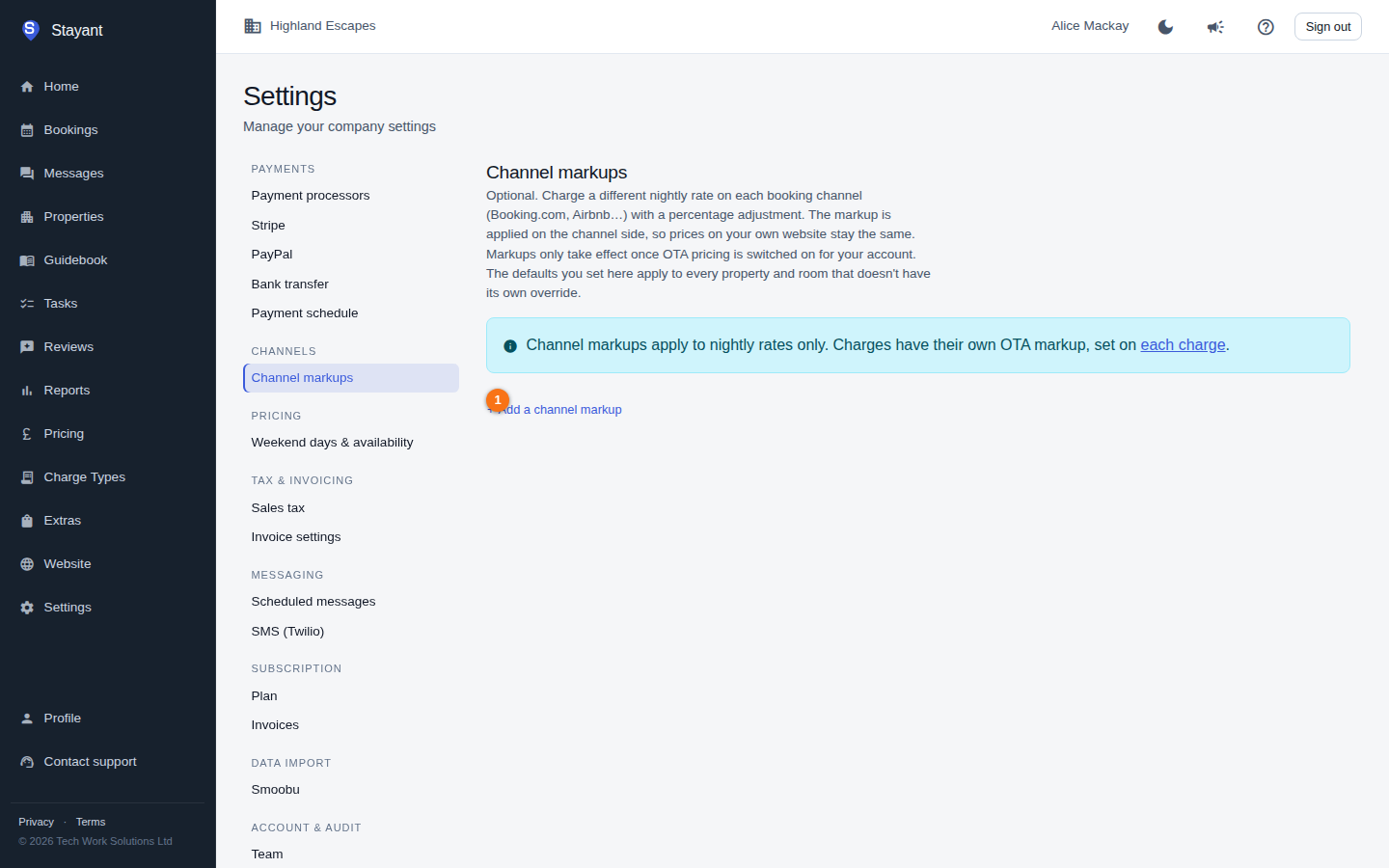
Each markup you save then appears as its own row here (if present) with an inline percentage field and a × to remove it.
Override for a property, room, or rate plan
The same compact markups editor appears in several places so you can override at the right level:
- Property — on the property's General tab.
- Room — in the room's edit card.
- Rate plan — in the room's rate-plans section, on each plan.
In each location the editor starts as just a small + Add a channel markup link until you add the first row. The steps to add one are the same as for the tenant default above.
On the rate-plan editor, channels you haven't overridden show an inherited-value hint (for example, "Booking.com: Currently using Property default: +10%") so you can see what price that channel will receive before deciding whether to override it.
Edit or remove a markup
Once a markup row exists:
- Change the percentage by typing a new value into the inline percent field — it saves as soon as you move off the field.
- Remove the markup by clicking the × next to it. The level above it (or no adjustment) then takes over for that channel.
Notes
- Percentages must be between -50 and 100. A value of 0% is treated as "no markup" — don't add a zero row; simply leave the channel unset.
- A channel can have only one markup per level. To target the same channel differently for a specific room or rate plan, add the override at that more-specific level.
Related
- OTA rate and charge markups — how this differs from the separate charge OTA markup, and why a configured markup may not be reaching your OTA listings yet.