Per-room pricing
A property can have more than one room (or unit), and each room is priced independently. Everywhere pricing appears in Stayant, rooms are kept separate so you can charge different rates for, say, a studio and a two-bedroom apartment in the same building.
Where per-room pricing shows up
The property Prices tab
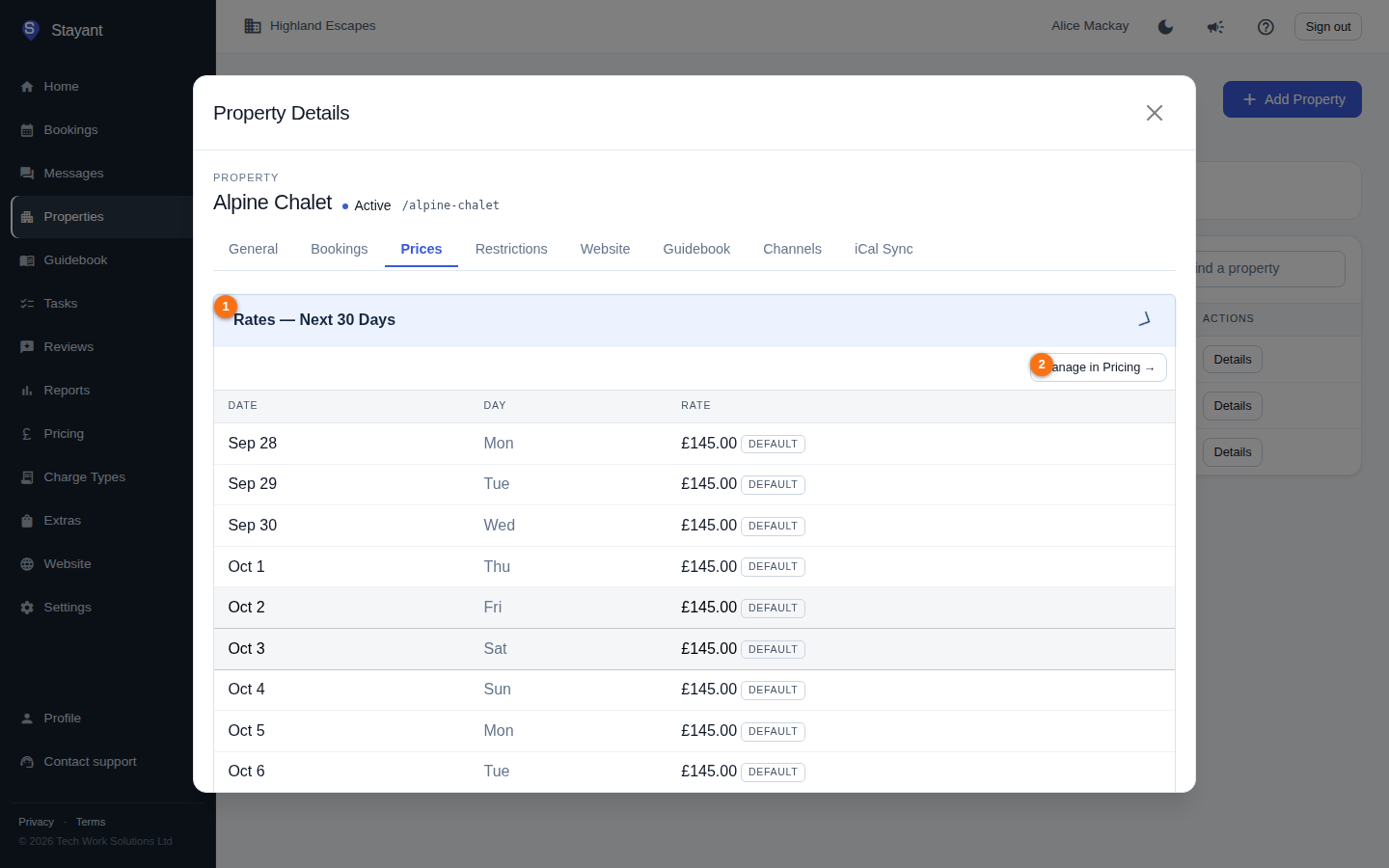
Open the property from the Properties list and select the Prices tab. Under Rates — Next 30 Days (①), a multi-room property shows a Room: heading before each room's rate table, so you can review every room's upcoming rates in one place. The Manage in Pricing → link (②) takes you to the full pricing grid.
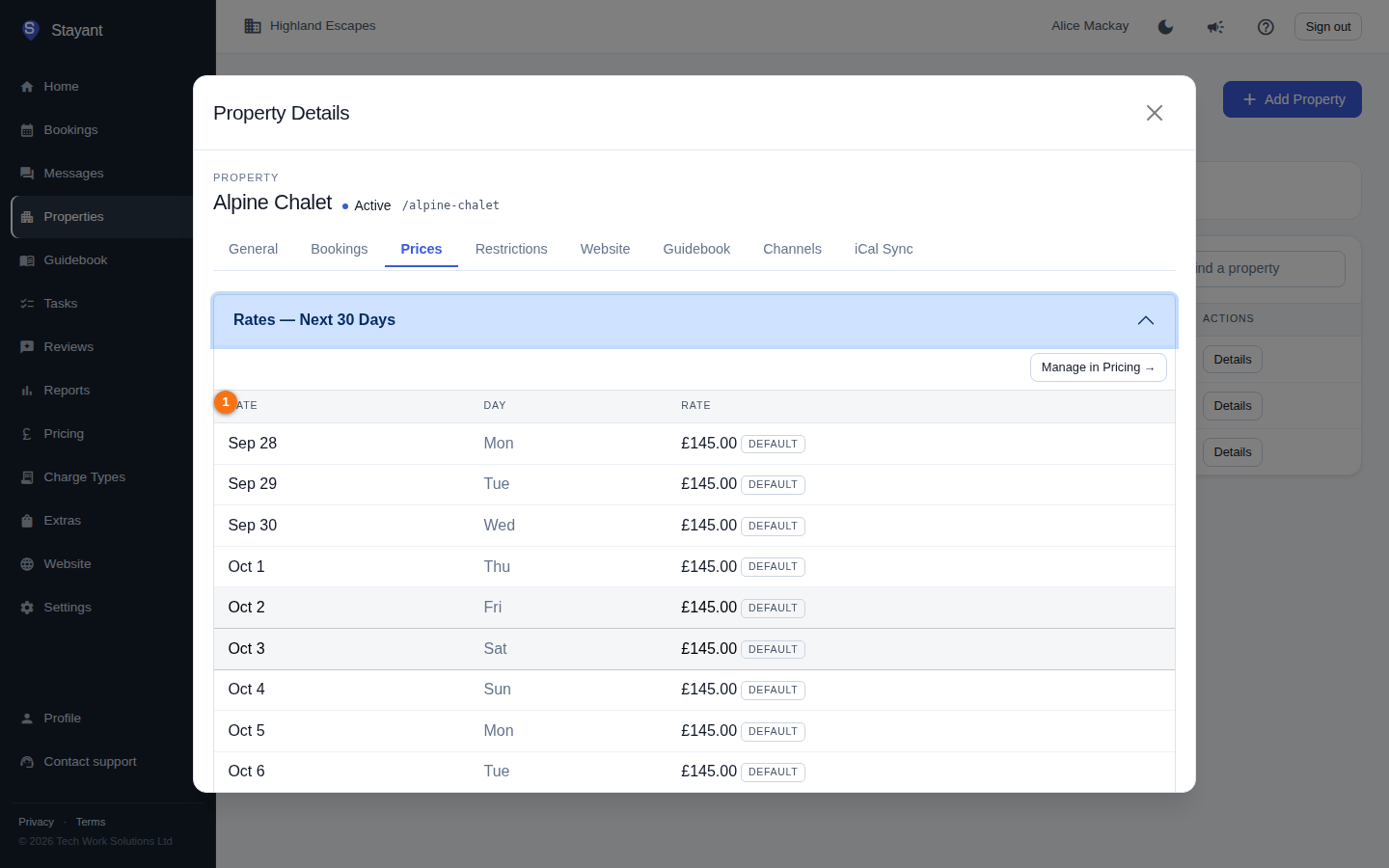
Each rate in the table (①) shows where it comes from with a small badge:
- (no badge) — an explicit daily rate you set.
- Seasonal — supplied by an active seasonal rule.
- Default — the room's weekday or weekend default.
The daily rate grid
On the Pricing page, a multi-room property is shown with a property header and a rooms badge, and each room appears as its own indented row of price cells. You edit each room's nightly rates on its own row. See The pricing calendar.
Per-room defaults
Each room has a Default nightly rate — the price guests pay — set on the room card (the General tab for a single-room property, or the Rooms tab for a multi-room one). This is the fallback used for any date without a more specific rate. (The separate Nightly cost price field on the same card is your internal cost and never affects what guests pay — see Nightly rate vs cost price.)
The weekday/weekend split for a room is managed on the Pricing page: each room row shows its Wd (weekday) and We (weekend) defaults, which you edit with the small pencil button beside them.
Per-room rules and discounts
The following are all set per room:
- Seasonal pricing rules — on multi-room properties, pick the room when adding a rule; on rooms with more than one rate plan, also pick the rate plan the rule applies to. See Seasonal & weekend pricing.
- Length-of-stay discounts — on the property Prices tab under Length-of-Stay Discounts, choose the room, a minimum number of nights, and a discount percentage (with an optional label).
- Minimum-night rules — per-date minimums in the grid's Min nights row, plus each room's own default minimum. See Minimum-night rules.
- Rate plans — each room has its own rate plans. See Rate plans.
Gotcha: When adding a seasonal rule or a length-of-stay discount on a multi-room property, the form shows a Room picker. On a single-room property that picker is hidden and the rule or discount applies to the only room automatically.