Your profile & password
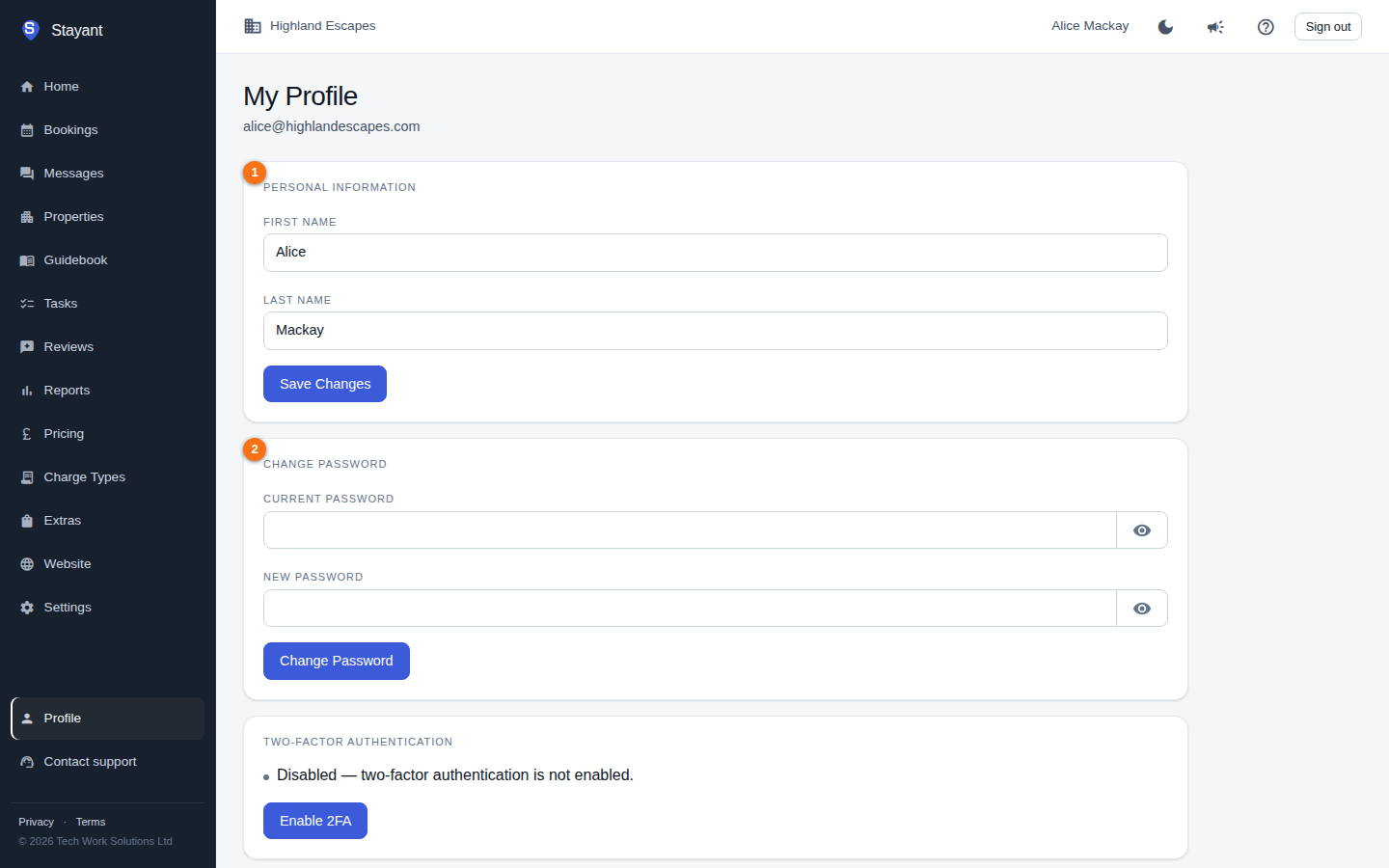
Your personal account details live on the My Profile page. Open it from Profile at the bottom of the sidebar, or go straight to /profile. The page header shows your email address, and the page is split into cards for Personal information (①), Change password (②), Two-factor authentication, Your data — where Download my data saves a JSON copy of the personal data Stayant holds about your account — and Delete account (see Delete your account).
Editing your name
- Open My Profile.
- In the Personal information card (①), update your First Name and Last Name.
- Click Save Changes.
A green confirmation appears when the update succeeds. Your email address is shown in the page header but isn't editable here.
Changing your password
- In the Change password card (②), enter your Current Password.
- Enter your New Password.
- Click Change Password.
Each field has a show/hide (eye) button so you can check what you've typed. A green message confirms success; if it fails, you'll see a prompt to check your current password and try again.
Two-factor authentication
The same page also has a Two-factor authentication card for adding an extra sign-in step. See Two-factor authentication for how to turn it on.