Generating your website from a description
If you haven't built any pages yet, the fastest way to get a starting point is to describe your business and let the AI Website Builder generate a complete draft site for you — a set of pages, well-composed blocks, and a cohesive theme, ready for you to review and refine.
How to start
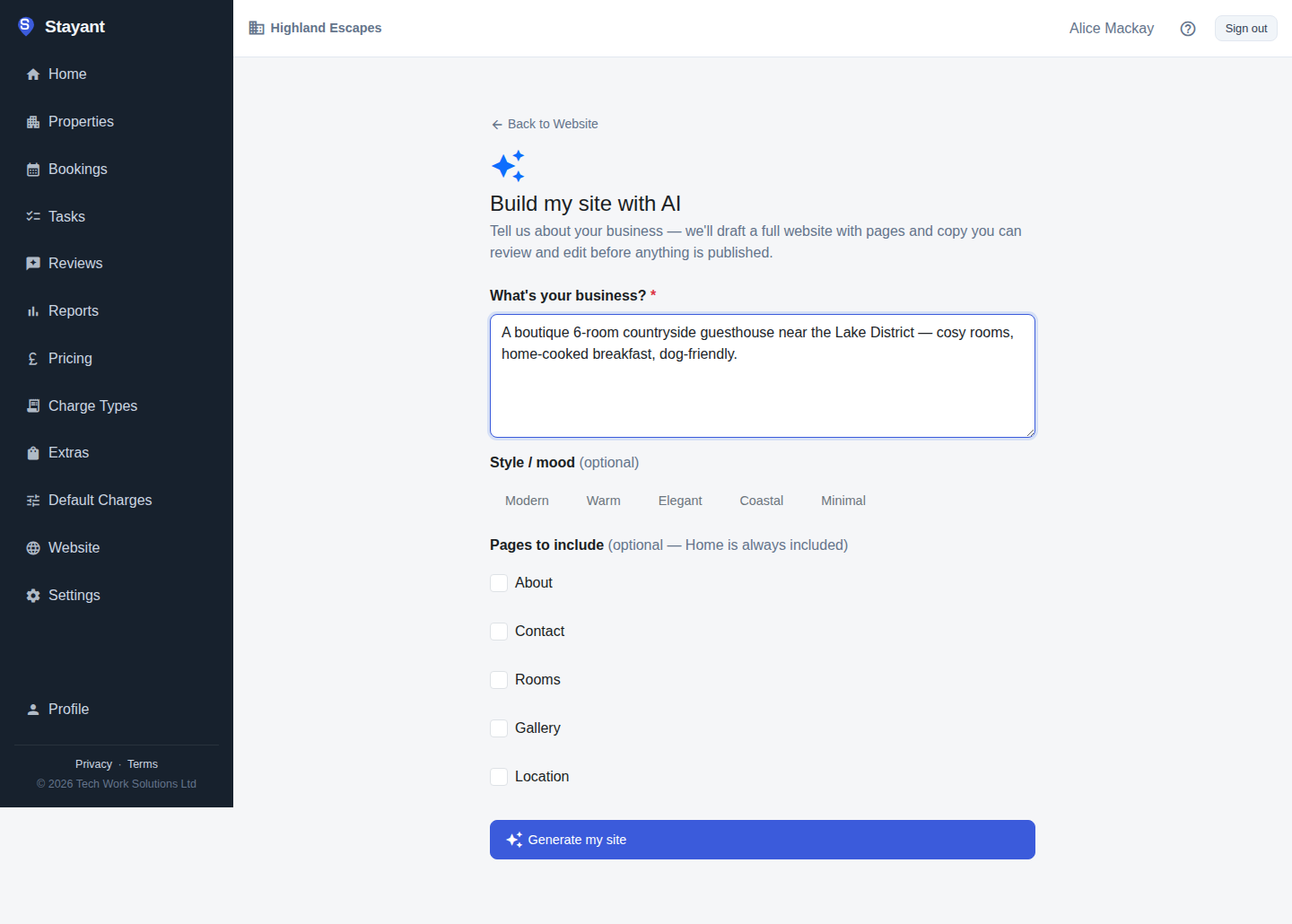
On the Website hub, when you have no pages yet, look for Build my site with AI. It opens a short form:
- What's your business? (required) — a few sentences about what you do, who stays with you, and anything that makes the place distinctive. The Generate my site button stays disabled until this is filled in.
- Style / mood (optional) — choose the overall look and feel you want the site to have.
- Pages to include (optional) — tick any of About, Contact, Rooms, Gallery, or Location. Home is always included. Leave them all unticked and the builder picks a sensible set for you.
Submit the form and the AI gets to work generating a full multi-page site: it writes the pages, composes blocks for each one, applies a cohesive theme, and uses your uploaded property photos where it can find a good fit.
It runs in the background
Generating a whole site takes longer than a single edit, so it runs in the background with live progress — you'll see "Building your site…" with a progress message and a counter like "Step 2 of 5 — 1 page(s) created so far". You don't have to wait on the page:
- It keeps going if you leave — generation finishes even if you navigate away or close the tab. Stay on the page if you want to watch progress: reopening the builder shows the intake form again rather than the running job, and starting a second generation is refused until the first finishes. Your new pages appear on the Website hub when it's done.
- Cancel — if you change your mind partway through, cancelling keeps whatever pages have already been generated as your draft, rather than throwing everything away.
Only one generation can run at a time for a given site.
It never publishes pages for you
Every page the builder creates is a draft, so none of them are visible to guests until you review them and choose to publish.
The one exception is the theme. Fonts, colours and spacing are site-wide settings rather than part of a page, so the theme the builder picks replaces your current one straight away. If your site is already published, guests will see the new look on your existing published pages immediately. You can change it back on the Design settings, or undo the change from the assistant.
After it finishes
When generation completes, Review your site takes you back to the Website hub, where the newly generated pages appear in your page list. From there you can:
- Open any page in the block editor to tweak it by hand.
- Keep refining with the AI assistant — "make the hero moodier", "add a spa page", and so on.
- Publish when you're happy with the result, using the same Publish controls you'd use for any other draft.
Usage and plans
Generating a full site uses a batch of your monthly AI-action allowance, rather than the single action a normal AI-assistant edit uses — building several pages and blocks at once naturally costs more than one change. If a generation fails partway through, the actions it used are refunded. Your usage so far is shown the same way it is throughout the AI features — "3 / 50 AI actions this month" means you've used 3 of your 50.